backup_home.sh: Automate Home Directory Backups in Linux
Regular backups are essential for protecting important files and reducing the impact of accidental deletion, hardware failures, system issues, or other data-loss events.
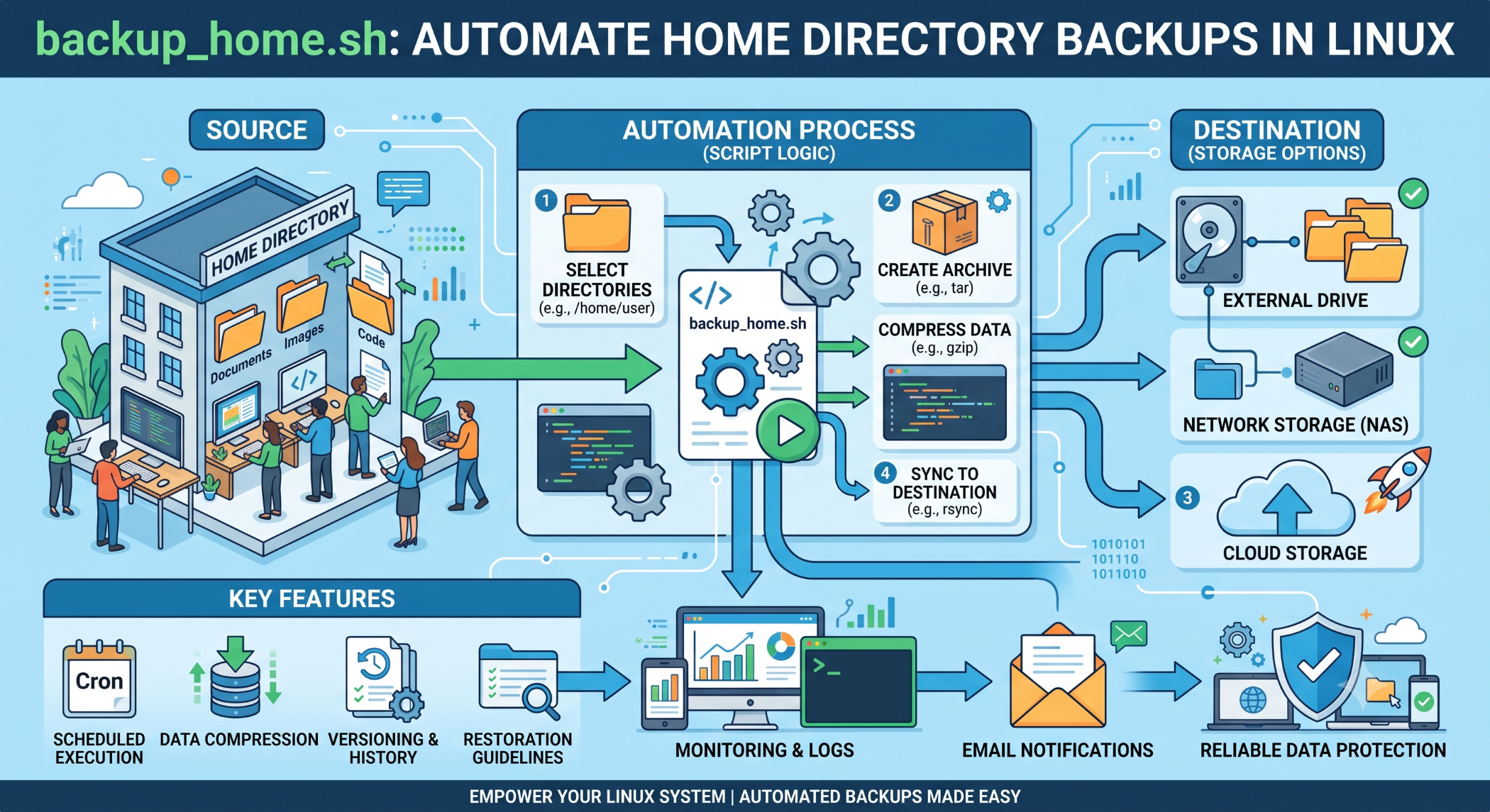
On Linux systems, a simple shell script such as backup_home.sh can automate the process of backing up user files stored under the /home directory.
What Is backup_home.sh?
backup_home.sh is a shell script designed to automate the backup of home-directory data.
A basic script might look like:
#!/bin/bash

SOURCE="/home/"
DEST="/backup/home/"

mkdir -p "$DEST"

tar -czf "$DEST/home-$(date +%Y-%m-%d).tar.gz" "$SOURCE"
This example creates a compressed archive of /home and stores it in /backup/home/.
Make the Script Executable
After creating the script, give it execute permission:
chmod +x backup_home.shYou can then run it with:
./backup_home.shDepending on where the backup destination is located, elevated permissions may be required.
Why Automate Backups?
Manual backups are easy to forget, especially on production servers.
Automation can provide:
- Consistent backup schedules.
- Less manual effort.
- Reduced risk of forgetting backups.
- Repeatable backup procedures.
- Easier operational management.
A scheduled script can run automatically without requiring an administrator to start it manually each time.
Schedule backup_home.sh With Cron
Linux cron can be used to schedule recurring backups.
Edit the cron configuration:
crontab -eFor example, to run the backup every day at 2:00 AM:
0 2 * * * /path/to/backup_home.shWhen scheduling production backups, make sure the script uses absolute paths and has the permissions required to access the source and destination.
Create Backup Directories Automatically
The script can create the destination directory if it does not already exist:
mkdir -p /backup/homeThis avoids failures caused by a missing backup directory.
Add Backup Retention
Keeping every backup forever can eventually consume significant storage.
A retention policy can remove older backup files after a defined period.
For example:
find /backup/home -type f -name "home-*.tar.gz" -mtime +7 -deleteThis example removes matching backup files older than seven days.
Retention periods should be based on the organization's recovery requirements rather than an arbitrary number.
Log Backup Activity
Logging makes it easier to confirm whether backups are running successfully.
For example:
LOG="/var/log/backup_home.log"

echo "$(date): Backup started" >> "$LOG"

tar -czf "/backup/home/home-$(date +%Y-%m-%d).tar.gz" /home/

echo "$(date): Backup completed" >> "$LOG"
For production systems, error handling should also be added so failures are visible.
Verify the Backup
Creating a backup file does not guarantee that the backup is usable.
Administrators should periodically verify that archives can be read and, more importantly, perform test restores.
For example:
tar -tzf /backup/home/home-2026-09-14.tar.gzThis lists the contents of the archive without extracting it.
Store Backups Separately
A backup stored on the same disk as the original data may be lost if that disk fails.
For better protection, consider storing backups on:
- Separate storage
- Network storage
- Object storage
- A dedicated backup server
Important backups should ideally have protection against the same failure that could affect the source system.
Secure Backup Files
Home directories may contain sensitive information. Backup files should therefore have appropriate permissions and access controls.
For example:
chmod 600 /backup/home/home-2026-09-14.tar.gzEncryption may also be appropriate when backups contain confidential business or personal information.
Best Practices
Define what needs to be backed up, automate the schedule, maintain an appropriate retention policy, monitor backup failures, and test restoration regularly.
Do not consider a backup successful simply because a file was created. A backup strategy is only useful when the data can be restored when needed.
Conclusion
A backup_home.sh script provides a simple way to automate Linux home-directory backups. By combining shell scripting with tools such as tar and cron, administrators can create a repeatable backup process with minimal manual effort.
For production systems, go beyond creating archives. Include retention, logging, security, separate storage, monitoring, and regular restore testing to build a dependable backup strategy.