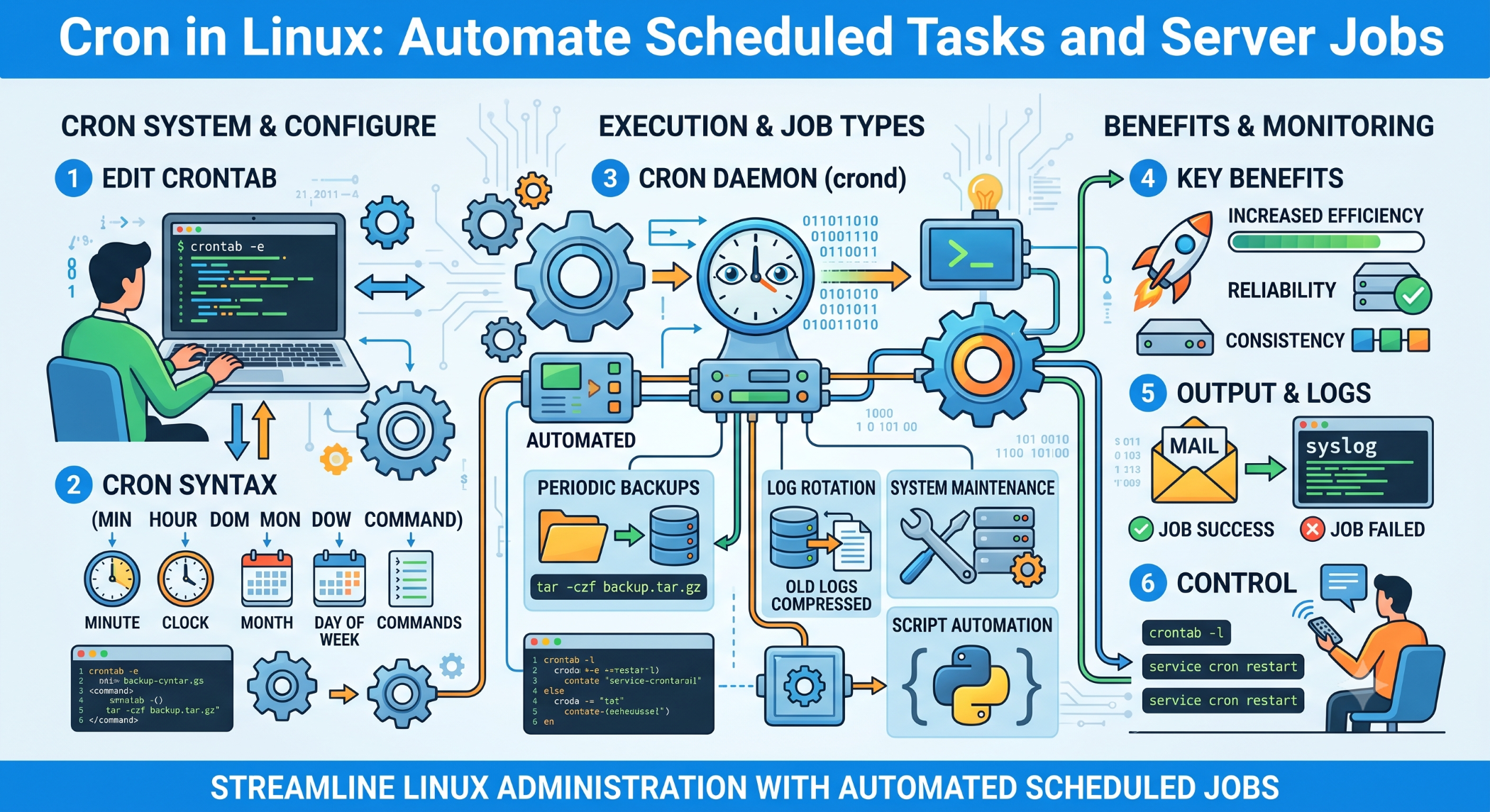
Cron in Linux: Automate Scheduled Tasks and Server Jobs
Linux systems often require repetitive tasks such as backups, log cleanup, report generation, database maintenance, and application jobs. Performing these tasks manually is time-consuming and can lead to missed schedules.
Cron provides a simple way to automate these recurring tasks by executing commands or scripts at predefined times.
What Is Cron?
Cron is a time-based job scheduler commonly available on Linux and Unix-like systems.
A scheduled task is called a cron job. It can execute a command or shell script automatically according to a defined schedule.
For example, a backup script can be configured to run every night without requiring an administrator to start it manually.
Check Cron Service
On systems using systemd, you can check the cron service with:
sudo systemctl status cronOn some distributions, the service may be named crond:
sudo systemctl status crondCreate a Cron Job
User-specific cron jobs can be edited using:
crontab -eA cron entry generally follows this structure:
* * * * * commandThe five fields represent:
Minute Hour Day-of-month Month Day-of-weekCron Examples
To run a script every day at 2:00 AM:
0 2 * * * /path/to/backup_home.shTo run a command every five minutes:
*/5 * * * * /path/to/script.shTo run a task every Sunday at midnight:
0 0 * * 0 /path/to/script.shUsing absolute paths is recommended because cron runs with a more limited environment than an interactive shell.
Run a Job at System Reboot
Cron also supports special scheduling shortcuts. For example:
@reboot /path/to/startup.shThis runs the specified command when the system starts.
View Existing Cron Jobs
To view the current user's cron jobs:
crontab -lFor system-wide jobs, administrators may also need to review locations such as:
/etc/crontab
/etc/cron.d/
/etc/cron.daily/
/etc/cron.weekly/
The exact available directories depend on the Linux distribution.
Redirect Cron Output to Logs
Logging is important because cron jobs run without an interactive terminal.
For example:
0 2 * * * /path/to/backup_home.sh >> /var/log/backup_home.log 2>&1This sends both standard output and errors to the log file.
Proper logging makes it easier to determine whether an automated job succeeded or failed.
Common Cron Use Cases
Cron is frequently used for:
- Automated backups
- Log cleanup
- Database maintenance
- Report generation
- Scheduled scripts
- Temporary-file cleanup
- Data synchronization
- Application background tasks
For example, a business application could run a daily report-generation script automatically.
Cron and Shell Scripts
Cron works particularly well with shell scripts.
For example:
#!/bin/bash

tar -czf /backup/home-$(date +%Y-%m-%d).tar.gz /home/
The script can then be scheduled using:
0 2 * * * /usr/local/bin/backup_home.shThis creates a repeatable automated process.
Important Cron Considerations
Cron jobs run with a specific environment, so variables and paths available in an interactive shell may not be available to the cron process.
Use full paths for commands and files where practical.
For example, instead of relying on:
php script.phpuse:
/usr/bin/php /var/www/app/script.phpAlso ensure that the user running the cron job has appropriate permissions.
Avoid Overlapping Jobs
If a scheduled task takes longer than its scheduling interval, multiple copies can start at the same time.
For example, a job scheduled every five minutes could still be running when the next execution begins.
For important jobs, use an appropriate locking or concurrency-control mechanism to prevent unwanted overlaps.
Cron Security Best Practices
Only give cron jobs the permissions they actually require. Avoid running application scripts as root unless necessary.
Protect scripts from unauthorized modification because anyone who can modify a privileged cron script may potentially execute commands with those privileges.
Review scheduled jobs periodically and remove obsolete entries.
Cron vs Systemd Timers
Cron is simple and widely used, but modern Linux systems may also use systemd timers.
Systemd timers can provide more detailed service management, logging, dependency handling, and scheduling controls.
For simple recurring tasks, cron remains convenient. For tightly integrated system services, systemd timers may be a better fit.
Conclusion
Cron is a practical Linux scheduling utility that allows administrators and developers to automate recurring commands and scripts.
From nightly backups and log maintenance to database jobs and application tasks, cron can reduce manual effort and improve operational consistency.
A reliable cron setup should include clear schedules, proper permissions, logging, error handling, and regular review of scheduled jobs.