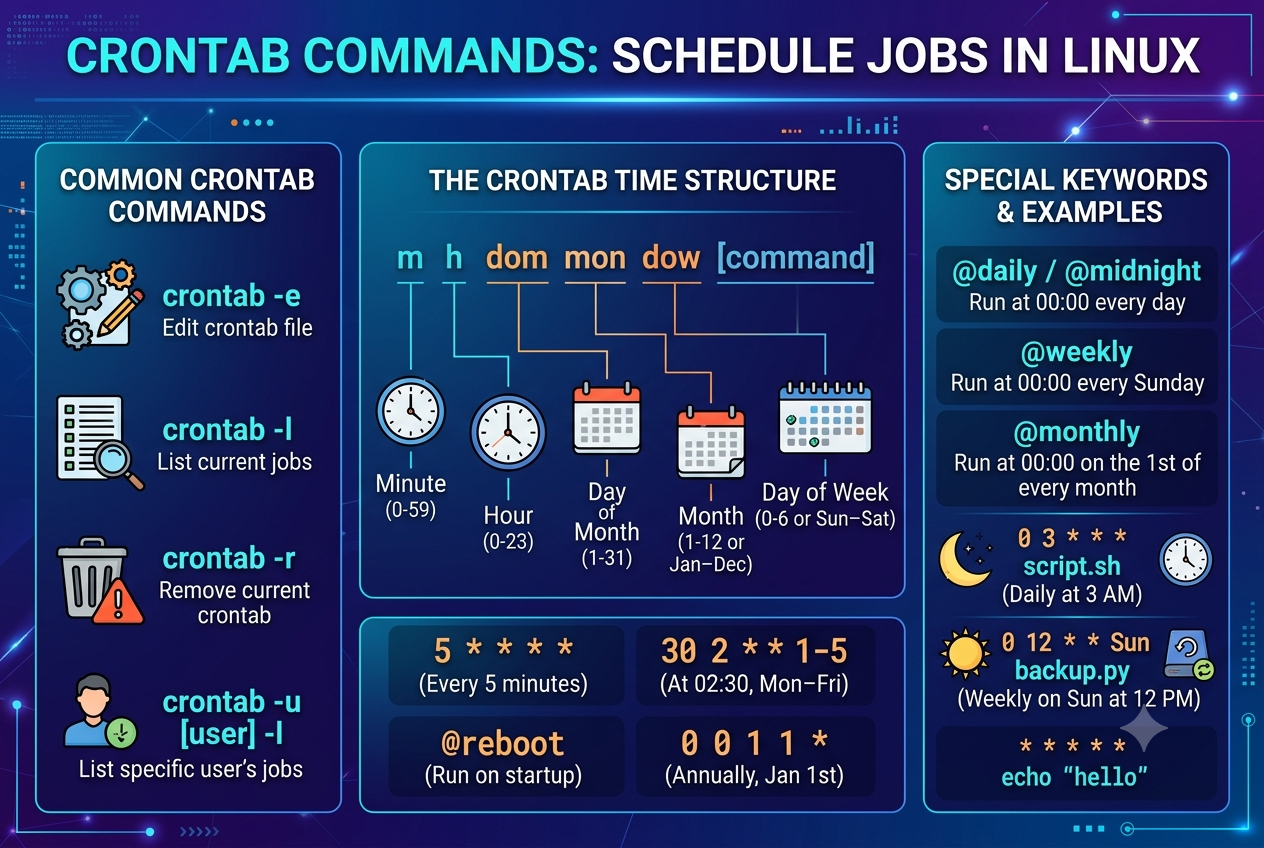
Crontab Commands
Crontab allows Linux users to schedule commands and scripts to run automatically at specific times. It is commonly used for backups, database maintenance, reports, cleanup tasks, and application automation.
1. Open Crontab
Use the following command to create or edit the current user's scheduled jobs:
crontab -eThe -e option opens the user's Crontab for editing.
2. View Existing Cron Jobs
To see the scheduled jobs for the current user:
crontab -lThis is useful for checking whether a particular scheduled task already exists.
3. Remove Crontab
To remove all scheduled jobs for the current user:
crontab -rUse this command carefully because it removes the user's entire Crontab.
4. Understand Crontab Syntax
A standard Cron entry uses five time fields followed by the command:
* * * * * commandThe fields represent:
- Minute
- Hour
- Day of month
- Month
- Day of week
For example:
0 2 * * * /home/user/backup.shThis runs the backup script every day at 2:00 AM.
5. Run a Job Every Hour
To execute a command every hour:
0 * * * * /path/to/script.shThe * represents all valid values for that field. Cron checks scheduled entries every minute.
6. Run a Job Every Day
You can also use the shortcut:
@daily /path/to/script.shOther useful shortcuts include @hourly, @weekly, @monthly, @yearly, and @reboot.
7. Run Cron Jobs With Logging
Redirecting output to a log file makes it easier to troubleshoot scheduled tasks:
0 2 * * * /home/user/backup.sh >> /home/user/backup.log 2>&1This stores both normal output and errors in the log file.
Conclusion
Crontab is a useful Linux automation tool for running repetitive tasks without manual intervention. By understanding commands such as crontab -e, crontab -l, and crontab -r, along with basic scheduling syntax, developers and system administrators can automate many routine server tasks.