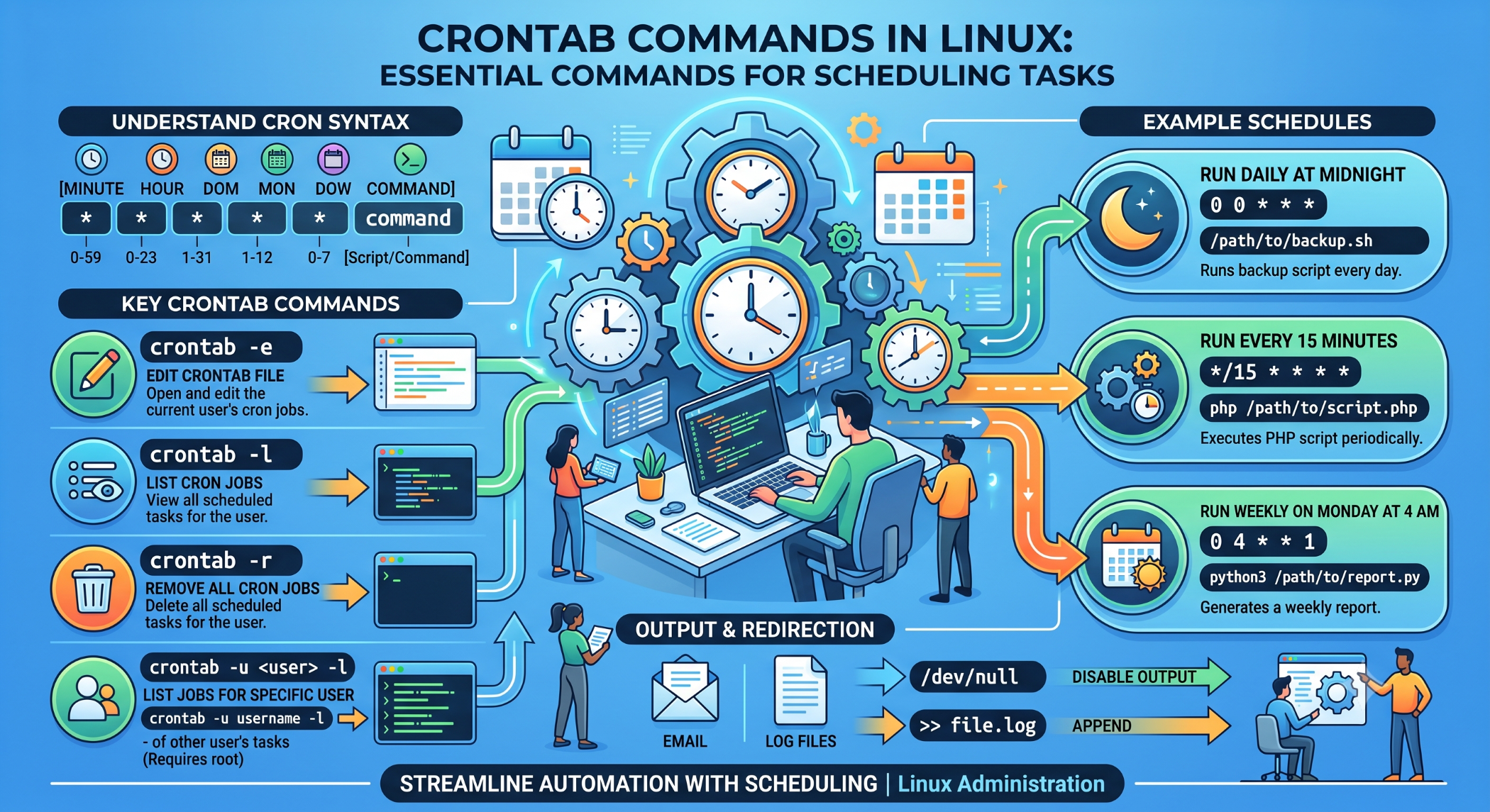
Crontab Commands in Linux: Essential Commands for Scheduling Tasks
Linux servers often perform repetitive tasks such as backups, log cleanup, database maintenance, monitoring, and report generation. Running these tasks manually can be time-consuming and unreliable.
Crontab commands make it possible to create and manage scheduled jobs that execute automatically at specific times or intervals.
What Is Crontab?
Crontab stands for cron table. It contains scheduled commands that are executed by the cron service.
A cron job generally follows this format:
* * * * * commandThe five fields represent:
Minute Hour Day-of-month Month Day-of-weekView Crontab Entries
To display the current user's scheduled jobs:
crontab -lThis is useful for checking which tasks are currently configured.
For another user, an administrator can use:
sudo crontab -u username -lEdit Crontab
Use the following command to create or modify scheduled jobs:
crontab -eThis opens the user's crontab in the configured editor.
After adding or modifying an entry, the cron service can automatically pick up the updated schedule.
Remove Crontab
To remove all cron jobs for the current user:
crontab -rUse this command carefully because it removes the user's entire crontab rather than a single selected entry.
Some environments support confirmation before removal:
crontab -iThe exact behavior depends on the cron implementation.
Manage Another User's Crontab
With appropriate administrative privileges, you can edit another user's scheduled tasks:
sudo crontab -u username -eThis is useful when server applications or services run under dedicated Linux accounts.
Schedule a Daily Task
To run a backup script every day at 2:00 AM:
0 2 * * * /usr/local/bin/backup.shThe first two fields specify the minute and hour.
Run a Job Every Five Minutes
A task can be scheduled at five-minute intervals:
*/5 * * * * /usr/local/bin/check_status.shThis is useful for lightweight monitoring or recurring application tasks.
Run a Weekly Task
For example, run a script every Sunday at midnight:
0 0 * * 0 /usr/local/bin/weekly_report.shCron can also use special shortcuts such as:
@daily /usr/local/bin/backup.sh
@weekly /usr/local/bin/report.sh
@reboot /usr/local/bin/startup.sh
Redirect Cron Output to a Log
Cron jobs often run without an interactive terminal. Redirecting output to a log file makes troubleshooting easier.
0 2 * * * /usr/local/bin/backup.sh >> /var/log/backup.log 2>&1This captures both normal output and error messages.
Use Absolute Paths
Cron does not necessarily run with the same environment as an interactive shell.
Instead of:
php script.phpprefer:
/usr/bin/php /var/www/app/script.phpUsing absolute paths makes cron jobs more reliable.
Check the Cron Service
On many Linux distributions, the service can be checked with:
sudo systemctl status cronSome distributions use:
sudo systemctl status crondThe appropriate service name depends on the operating system.
Common Crontab Use Cases
Crontab commands are commonly used for:
- Automated backups
- Database maintenance
- Log cleanup
- Report generation
- Monitoring scripts
- Data synchronization
- Application jobs
- Temporary-file cleanup
For example, a business application can use cron to generate a daily report automatically and save it to a designated location.
Troubleshooting Crontab Jobs
When a cron job does not run, check:
Crontab Entry
      ↓
Script / Command Path
      ↓
File Permissions
      ↓
Environment Variables
      ↓
Cron Service
      ↓
Logs / Error Output
A command that works from the terminal may fail through cron because of different environment variables, permissions, or working directories.
Best Practices
Use absolute paths, keep cron scripts focused, log important operations, and make sure the executing user has the required permissions.
For critical jobs, add error handling and monitoring. Backups in particular should be regularly tested by performing actual restore operations.
Conclusion
Crontab commands provide Linux administrators and developers with a simple way to manage scheduled tasks. Commands such as crontab -l, crontab -e, and crontab -r make it easy to view, edit, and manage recurring jobs.
By combining correct scheduling syntax with logging, permissions, absolute paths, and monitoring, businesses can automate routine server operations reliably.