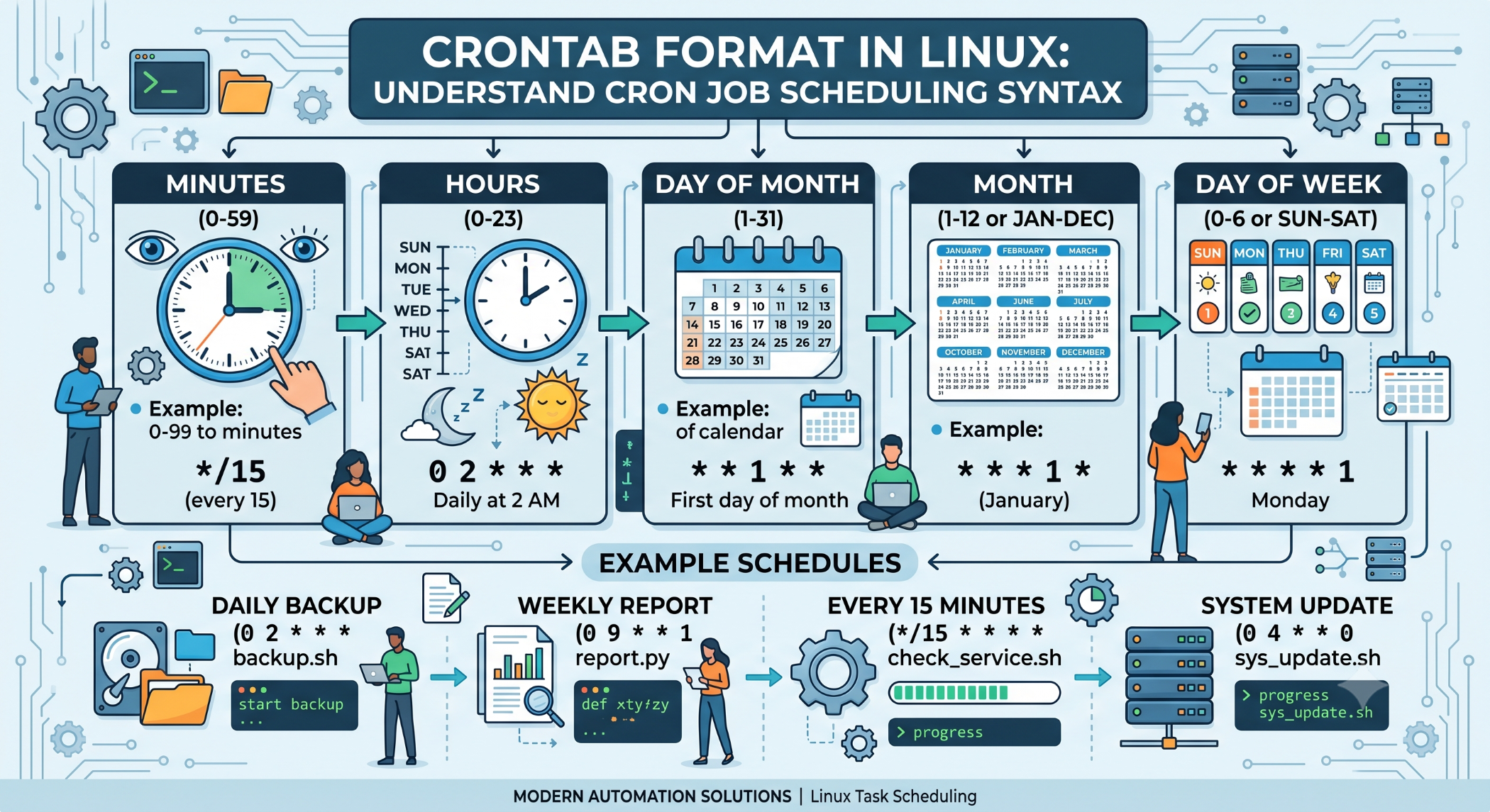
Crontab Format in Linux: Understand Cron Job Scheduling Syntax
Linux provides cron as a time-based job scheduler for automatically running commands and scripts. To create a scheduled task, developers and system administrators need to understand the crontab format and how its scheduling fields work.
A correct crontab entry tells Linux exactly when a command should execute.
What Is the Crontab Format?
A standard crontab entry contains five time-and-date fields followed by the command:
* * * * * commandThe five fields are:
Minute Hour Day-of-month Month Day-of-weekEach field accepts specific values and operators that define the execution schedule.
Understanding the Five Fields
Minute
The minute field controls when the task runs within an hour.
Valid values are:
0-59For example:
30 * * * * /path/to/script.shruns the script at 30 minutes past every hour.
Hour
The hour field controls the hour of execution.
Valid values are:
0-23For example:
0 6 * * * /path/to/script.shruns the script at 6:00 AM every day.
Day of the Month
This field specifies the day of the month.
Valid values are:
1-31For example:
0 9 15 * * /path/to/script.shruns at 9:00 AM on the 15th day of each month.
Month
The month field controls which months the job runs.
Valid values are:
1-12For example:
0 10 1 1 * /path/to/script.shruns at 10:00 AM on January 1.
Day of the Week
This field specifies the weekday.
Common numeric values are:
0-7where 0 and 7 generally represent Sunday.
For example:
0 8 * * 1 /path/to/script.shruns at 8:00 AM every Monday.
Using the Asterisk
The * means every possible value for that field.
For example:
* * * * * /path/to/script.shruns every minute.
Another example:
0 * * * * /path/to/script.shruns at the start of every hour.
Using Ranges
A hyphen - defines a range of values.
For example:
0 9-17 * * * /path/to/script.shruns at the start of every hour from 9:00 AM through 5:00 PM.
Using Lists
A comma , allows multiple specific values.
For example:
0 9,13,17 * * * /path/to/script.shruns at 9:00 AM, 1:00 PM, and 5:00 PM every day.
Using Step Values
The / operator specifies intervals.
For example:
*/10 * * * * /path/to/script.shruns every 10 minutes.
Another example:
0 */2 * * * /path/to/script.shruns every two hours.
Common Crontab Examples
Run a backup every day at 2:00 AM:
0 2 * * * /usr/local/bin/backup.shRun a monitoring script every five minutes:
*/5 * * * * /usr/local/bin/check.shRun a report every Monday at 9:00 AM:
0 9 * * 1 /usr/local/bin/report.shRun a cleanup task on the first day of every month:
0 1 1 * * /usr/local/bin/cleanup.shSpecial Crontab Shortcuts
Cron also supports commonly used scheduling shortcuts:
@reboot /usr/local/bin/startup.sh
@daily /usr/local/bin/backup.sh
@weekly /usr/local/bin/report.sh
@monthly /usr/local/bin/cleanup.sh
These can make simple schedules easier to read.
Edit and View Crontab
To edit the current user's crontab:
crontab -eTo view existing jobs:
crontab -lUse these commands to create and manage scheduled tasks.
Use Absolute Paths
Cron runs with a different environment from an interactive terminal. Commands that work in a shell may fail when executed through cron because the expected PATH or working directory may not be available.
Use complete paths whenever possible:
0 2 * * * /usr/bin/php /var/www/app/backup.phpThis makes scheduled tasks more predictable.
Add Logging
Logging is useful for verifying that automated tasks are running correctly.
For example:
0 2 * * * /usr/local/bin/backup.sh >> /var/log/backup.log 2>&1This records both standard output and errors.
Avoid Overlapping Cron Jobs
A job may still be running when its next scheduled execution begins. This can create multiple processes and unnecessary resource usage.
For long-running tasks, use an appropriate locking mechanism or other concurrency control to prevent unintended overlapping executions.
Best Practices
Use clear schedules, absolute paths, appropriate permissions, and logging for important cron jobs. Test the command manually before adding it to crontab and verify that the scheduled job runs as expected.
For critical tasks such as backups, also monitor failures and regularly test whether the generated data can actually be restored.
Conclusion
The crontab format provides a simple but powerful way to automate tasks on Linux systems. By understanding the five scheduling fields along with operators such as *, -, ,, and /, developers and administrators can create precise recurring schedules.
A reliable cron job should combine correct scheduling syntax, absolute paths, appropriate permissions, logging, and monitoring to ensure that automation works consistently.