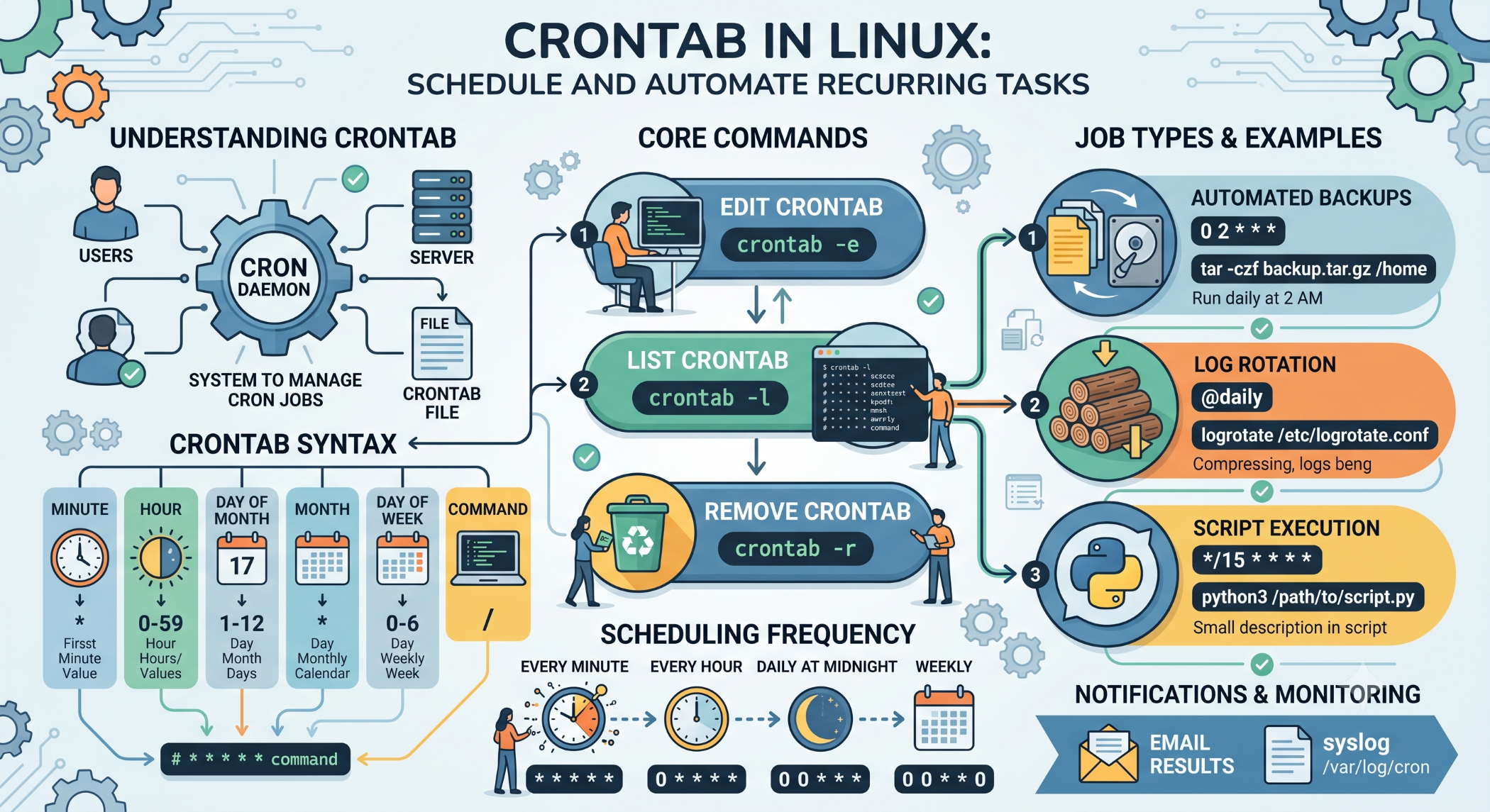
Crontab in Linux: Schedule and Automate Recurring Tasks
Linux servers often require repetitive tasks such as backups, log cleanup, report generation, database maintenance, and application jobs. Running these tasks manually is inefficient and can lead to missed schedules.
Crontab provides a convenient way to schedule commands and scripts so they execute automatically at predefined times.
What Is Crontab?
Crontab, short for cron table, is a configuration file containing scheduled commands for the cron service.
Each entry defines when a command should run and which command or script should be executed.
A basic cron entry looks like:
* * * * * commandThe five scheduling fields represent:
Minute Hour Day-of-month Month Day-of-weekOpen Crontab
To edit the current user's cron jobs:
crontab -eTo view existing jobs:
crontab -lAdministrators can manage another user's crontab when appropriate:
sudo crontab -u username -eCrontab Examples
Run a backup every day at 2:00 AM:
0 2 * * * /usr/local/bin/backup_home.shRun a script every five minutes:
*/5 * * * * /usr/local/bin/check_status.shRun a task every Sunday at midnight:
0 0 * * 0 /usr/local/bin/weekly_report.shUnderstanding the Cron Format
Consider:
30 4 * * 1 /usr/local/bin/report.shThis means the script runs at 4:30 AM every Monday.
Breaking it down:
30  → Minute
4   → Hour
*   → Every day of the month
*   → Every month
1   → Monday
Understanding these five fields is essential when creating crontab entries.
Common Scheduling Shortcuts
Crontab also supports special shortcuts:
@reboot /usr/local/bin/startup.sh
@daily /usr/local/bin/backup.sh
@weekly /usr/local/bin/report.sh
@monthly /usr/local/bin/maintenance.sh
These provide simpler alternatives for common schedules.
Use Absolute Paths
Cron runs in a limited environment compared with an interactive terminal. It is therefore safer to use absolute paths.
Instead of:
php script.phpuse:
/usr/bin/php /var/www/app/script.phpThe same principle applies to scripts, files, and other commands.
Log Cron Jobs
Cron jobs often run without an interactive terminal, so logging is important.
For example:
0 2 * * * /usr/local/bin/backup_home.sh >> /var/log/backup_home.log 2>&1This records both normal output and errors in the log file.
Logs make it easier to determine whether a scheduled task completed successfully.
Check Cron Service
On many Linux distributions using systemd, check the cron service with:
sudo systemctl status cronSome distributions use crond instead:
sudo systemctl status crondMake sure the appropriate service is running and configured to start automatically.
Common Uses of Crontab
Crontab is frequently used for:
- Automated backups
- Log rotation and cleanup
- Database maintenance
- Scheduled reports
- Data synchronization
- Temporary-file cleanup
- Application scripts
- Monitoring tasks
For example, a website can automatically run a database backup every night using a cron job.
Prevent Overlapping Jobs
A scheduled script may still be running when its next scheduled execution begins.
This can create duplicate processes, excessive resource usage, or conflicting operations.
For long-running tasks, use an appropriate locking mechanism or concurrency control to ensure that only the required number of instances run at a time.
Cron Job Permissions
Cron jobs execute with the permissions of the user whose crontab contains the entry.
Avoid using root unnecessarily. If a task requires elevated privileges, make sure the script and everything it executes are protected from unauthorized modification.
Troubleshooting Crontab
When a cron job does not work, check:
Crontab entry
     ↓
Command path
     ↓
File permissions
     ↓
Environment variables
     ↓
Cron service
     ↓
Logs / Error output
A command that works from the terminal may fail from cron because environment variables, working directories, or executable paths are different.
Best Practices
Use absolute paths, keep cron jobs simple, log important tasks, validate permissions, and document what each scheduled job does.
For critical production tasks, add error handling and monitoring rather than assuming that a scheduled command always succeeds.
Conclusion
Crontab is a simple and powerful Linux mechanism for automating recurring commands and scripts. By defining the correct schedule and command, administrators can automate backups, reports, maintenance, monitoring, and many other operational tasks.
A reliable crontab setup requires more than writing the schedule. Proper paths, permissions, logging, error handling, and monitoring are essential for dependable automation.