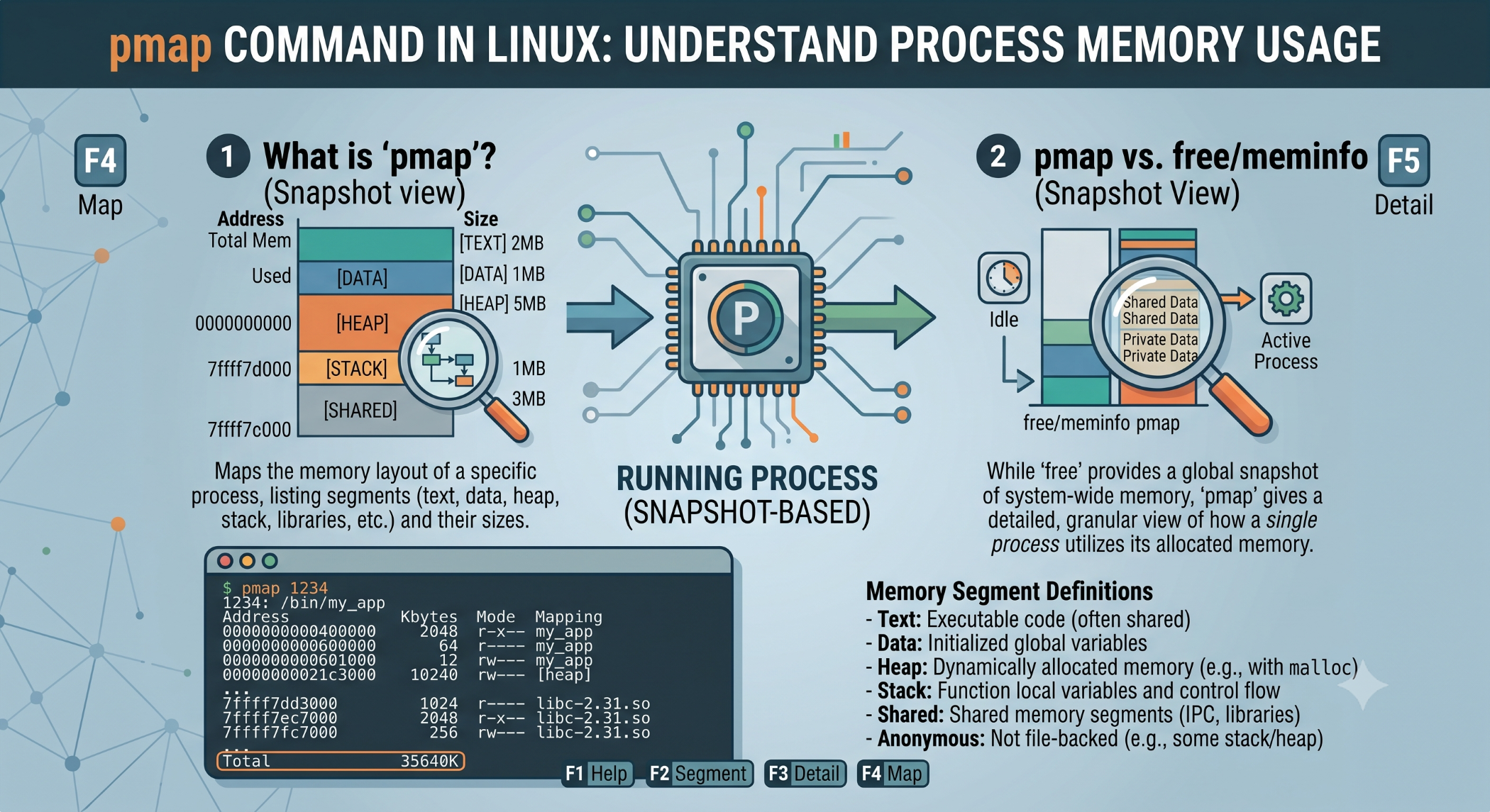
pmap Command in Linux
When a Linux application consumes more memory than expected, it is useful to understand how that memory is being allocated. The pmap command provides a detailed view of the memory mappings of a running process.
What Is the pmap Command?
pmap reports the memory map of one or more processes.
The basic syntax is:
pmap [options] PIDFor example:
pmap 1234Here, 1234 represents the process ID (PID) of the application you want to inspect.
What Information Does pmap Show?
The command can show memory mappings associated with a process, including mapped files and anonymous memory.
For a more detailed view, use:
pmap -x 1234The extended output includes fields such as mapping size, resident memory (RSS), dirty memory, permissions, and the mapped object.
Useful pmap Options
-x
Displays extended memory information:
pmap -x 1234This is particularly useful when investigating which memory mappings are consuming resources.
-d
Displays device-related information:
pmap -d 1234-q
Suppresses some header and footer information:
pmap -q 1234These options can be useful when the output needs to be processed or reviewed more efficiently.
Why Use pmap?
pmap is useful for:
- Investigating high memory usage.
- Understanding a process's memory layout.
- Troubleshooting memory-related problems.
- Examining memory mappings of applications.
- Supporting Linux performance analysis.
It can be particularly helpful when used together with commands such as ps, top, and htop.
Example
First, find a process ID:
ps aux | grep apacheThen inspect its memory map:
pmap -x 1234This provides more detailed information about how the selected process is using memory.
pmap vs free
The free command provides an overview of overall system RAM and swap usage.
pmap, by contrast, focuses on the memory mappings of a specific process.
Using both can therefore provide a broader understanding of a Linux memory problem.
Best Practices
Use pmap when you need process-level memory information rather than only overall system statistics. Avoid drawing conclusions from a single memory value; review the process over time and combine pmap with other monitoring tools.
Conclusion
The Linux pmap command is a useful troubleshooting tool for examining how an individual process uses memory. Its basic form provides memory mappings, while options such as -x provide more detailed information.
For developers and system administrators, pmap can be a valuable part of a Linux memory-monitoring toolkit.